Building a Professional Folder Tree for AI Content Packs
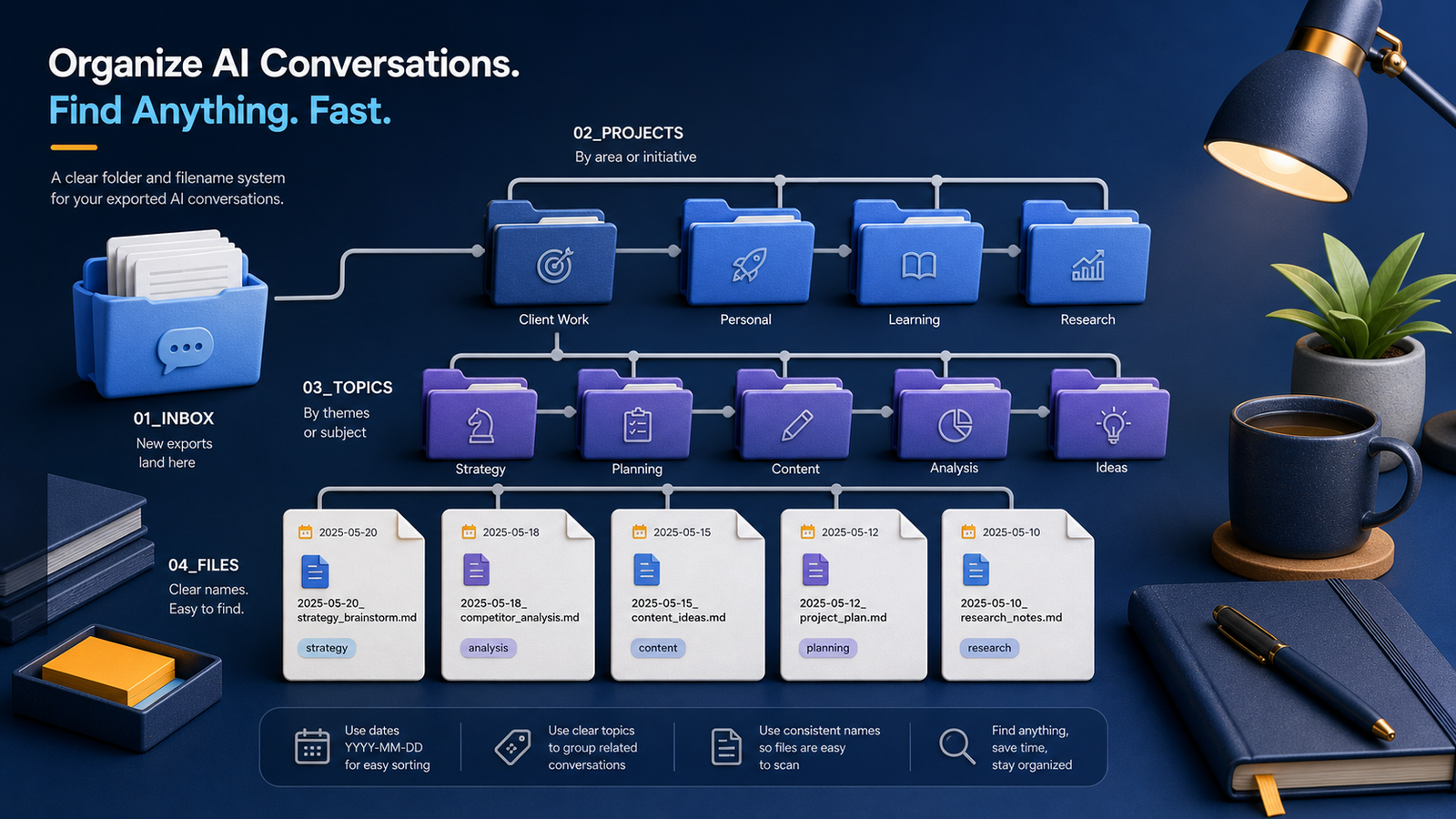
A shallow, repeatable tree turns raw AI output into a library you can hand to a teammate.
In AI-assisted work, organization decides whether outputs stay useful. A pile of downloads is not a library. A practical folder tree for AI content packs turns raw Gemini conversations, media, code, and notes into packages you can archive, search, hand off, or publish without reconstructing the session from memory.
This guide focuses on a tree you will actually maintain—not an elaborate taxonomy that collapses after two busy weeks.
What an AI content pack is
A content pack is a self-contained unit for one conversation, deliverable, or milestone. It should answer:
- What was produced?
- Which project owns it?
- Which files are source versus working copies?
- Where are the images and other attachments?
- What should someone read first?
If a teammate can open the pack and understand it without your chat history, the structure is working.
A professional tree that stays shallow
Start with an archive root and keep depth low:
AI-Content-Library/
├── 00-Inbox/
├── Projects/
│   └── website-redesign/
│       └── 2026-07-23_homepage-outline/
│           ├── README.md
│           ├── conversations/
│           ├── media/
│           ├── assets/
│           ├── metadata/
│           └── publish/
├── Topics/
│   └── prompt-libraries/
├── Templates/
└── Archive/
Recommended pack subfolders
conversations/— transcripts in Markdown and optional JSON source exportsmedia/— images, audio, video, screenshots, generated visualsassets/— code snippets, Canvas HTML, CSS, CSV tables, downloadable filesmetadata/— manifests, catalogs, checksums, source logs, rights notespublish/— cleaned drafts ready for a CMS or shared document (optional)README.md— purpose, outcome, sensitivity, and “open this first” instructions
This shape maps cleanly onto Gemini export workflows. It also matches the habits in the folders and filenames guide.
Pack README template
Every pack should open with a short README.md:
# Homepage outline pack
Date: 2026-07-23
Project: website-redesign
Status: reference
Sensitivity: internal

Purpose: Draft homepage sections from research chats.
Outcome: Approved outline for design handoff.
Open first: conversations/2026-07-23_homepage-outline_working.md
Media notes: hero concepts are in media/; do not publish client logos.
Follow-up: convert outline into CMS draft in publish/.
The README prevents the pack from becoming a mystery folder after a month away.
Filename conventions inside the pack
Use the same date-first pattern as the broader archive:
2026-07-23_website-redesign_homepage-outline_source.json
2026-07-23_website-redesign_homepage-outline_working.md
2026-07-23_website-redesign_homepage-outline_hero.png
Keep roles explicit: source, working, reference, publish. Avoid final-final.
Metadata that makes packs searchable
In metadata/, keep at least one lightweight catalog. A simple CSV works:
filename,type,role,project,topics,sensitivity,notes
..._working.md,markdown,working,website-redesign,"homepage,copy",internal,approved outline
..._hero.png,image,media,website-redesign,"hero,visual",internal,generated concept
Consistent fields support desktop search and later automation. For retrieval patterns across many packs, use the searchable Gemini archive guide.
Why structure matters for publishing and SEO
Content management systems and search workflows reward predictable packages:
- Media already has descriptive filenames and alt notes
- Drafts live in one place instead of chat scrollback
- Related assets are not missing on publish day
- Internal links between research and final drafts are easier to maintain
When a pack becomes a public page, follow solid fundamentals such as Google’s SEO starter guide. For structured descriptive metadata concepts, the Schema.org getting started guide is a useful reference—without requiring you to invent markup for private archives.
Build one pack, then templatize
Do not redesign the whole library on day one:
- Export one valuable Gemini conversation with media.
- Create a pack folder using the tree above.
- Preserve attachments with relative paths using the media preservation checklist.
- Write the README and a three-line summary.
- Copy the empty pack skeleton into
Templates/. - File the completed pack under the correct project.
- Add the pack to backup rotation with the privacy-aware backup guide.
After three packs, adjust the tree only where friction appeared. Prefer deletion of unused folders over adding speculative ones.
Common anti-patterns
- Deep nests such as
2026/07/project/ai/gemini/exports/final - One giant
mediadump shared by every project - Packs without README files
- Mixing restricted client material into public draft folders
- Keeping only screenshots of code instead of real source files
- Treating the inbox as long-term storage
Frequently asked questions
Should every chat become a content pack?
No. Create packs for milestones, deliverables, reusable research, and media-heavy sessions. Lightweight disposable chats can stay out of the library.
Projects first or topics first?
Projects first for most work. Use Topics/ for material that truly spans multiple projects, such as a personal prompt library.
How does this relate to Gemini Exporter?
Gemini Exporter is designed to help produce clean local conversation folders and catalogs. The folder tree above is the destination architecture those exports should land in, whether you assemble packs manually or with tooling.
Put the tree to work
A professional folder tree is a communication tool as much as a storage tool. It tells future-you—and anyone you collaborate with—what matters, what is source material, and what is ready to reuse. Start with one pack, keep the tree shallow, and connect it to the broader export and organization system.